
Orbital: HR Workflow Management Platform
Helping HR teams track onboarding and offboarding workflows, identify bottlenecks, and take action faster.
Duration
24H
Role
UI/UX Designer
Used Tools
Figma, FigJam
Overview
Orbital is an HR workflow management platform designed to help HR teams manage employee onboarding and offboarding processes in one centralized workspace.
The platform allows HR users to create reusable workflow templates, assign tasks to responsible people, monitor employee workflow progress, identify blocked or overdue tasks, and take quick actions such as sending reminders, reassigning tasks, or marking tasks as complete.
The platform focuses on designing a workflow experience that helps HR teams move from planning workflows to tracking progress and resolving issues with less confusion.
Understanding the Workflow Problem
HR teams often manage multiple onboarding and offboarding workflows at the same time. Each workflow can include different tasks, departments, assignees, due dates, and approval steps.
When a task is delayed, blocked, or assigned to the wrong person, it can affect the entire employee transition process. HR teams need a clear way to understand:
Which workflows are active
Which tasks are blocked or overdue
Who is responsible for each task
What action should happen next
Whether the workflow is on track, pending, or delayed
Without a centralized workflow view, HR users may need to check multiple tools, message different people manually, and track progress through spreadsheets or scattered communication.
Pain Points
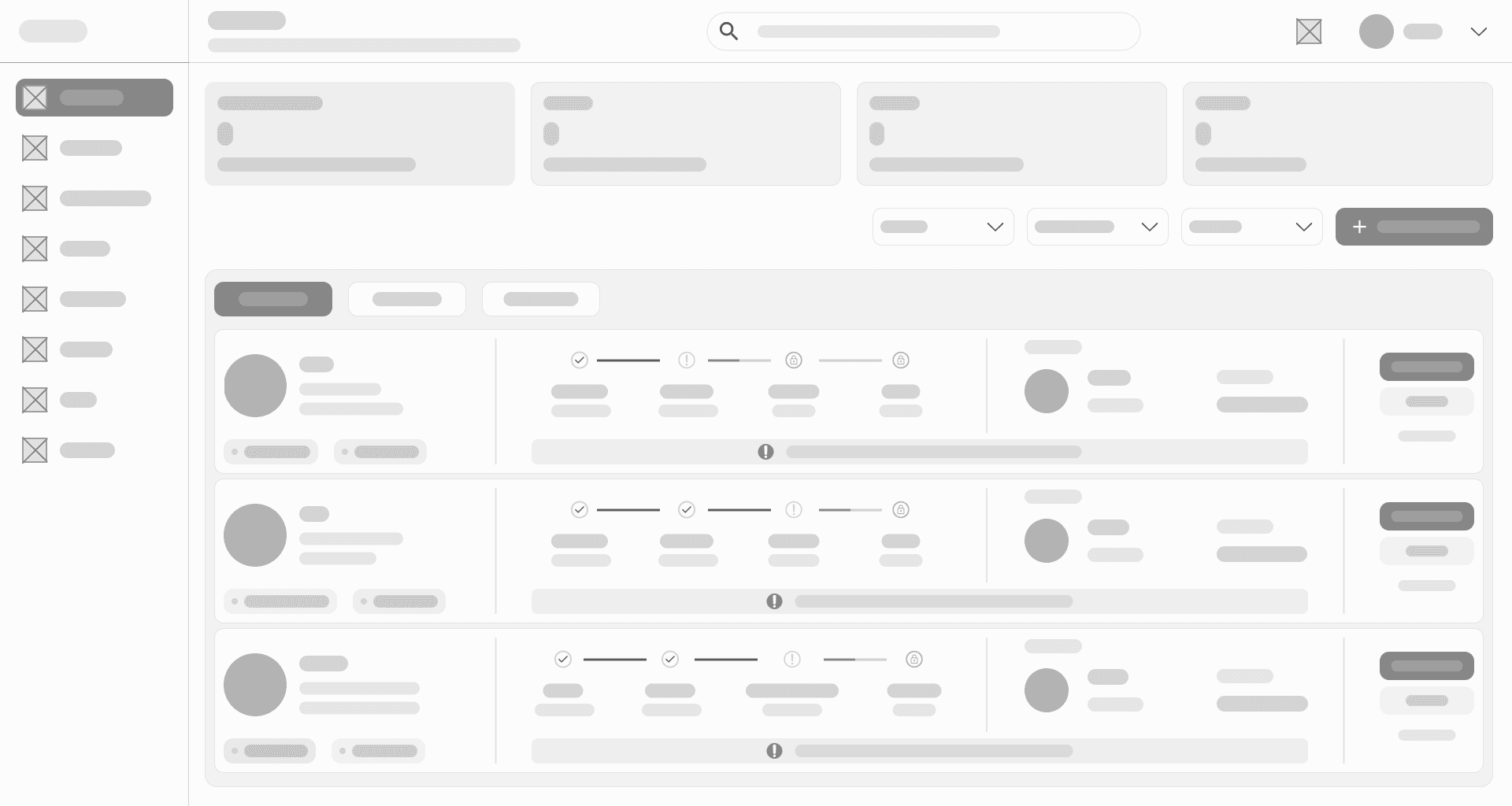
The main UX challenge was designing a platform that could present complex workflow information in a way that is easy to scan, understand, and act on. HR teams need to manage multiple onboarding and offboarding workflows at the same time, so the experience had to support visibility, ownership, and quick decision-making.
1. Workflow status is hard to scan
HR users need to quickly understand whether a workflow is blocked, pending, or on track. If every workflow looks visually similar, urgent issues can be missed.
2. Task ownership is unclear
Onboarding and offboarding often involve HR, managers, IT, and other departments. Without clear ownership, users may not know who is responsible for the next action.
3. Delays are difficult to catch early
A task can become overdue or blocked before HR notices it. When delays are not visible early, they can affect the entire employee transition process.
4. Repetitive setup takes time
HR teams often repeat similar workflow steps for different roles, departments, or employee types. Creating each workflow manually can slow down the process.
5. Status and action are disconnected
Seeing that a task is blocked is not enough. HR users also need a direct way to respond, such as sending a reminder, reassigning the task, or reviewing details.
Mapping the Workflow Before Designing Screens
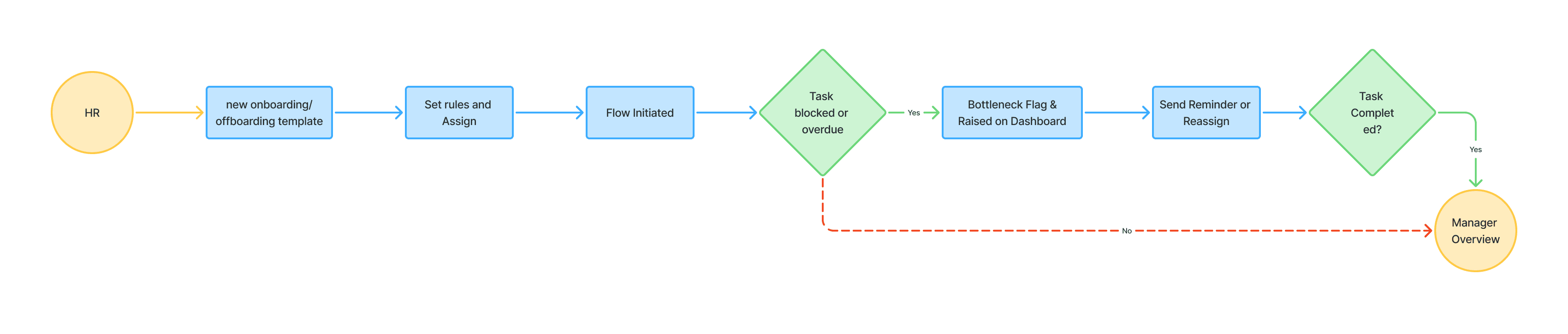
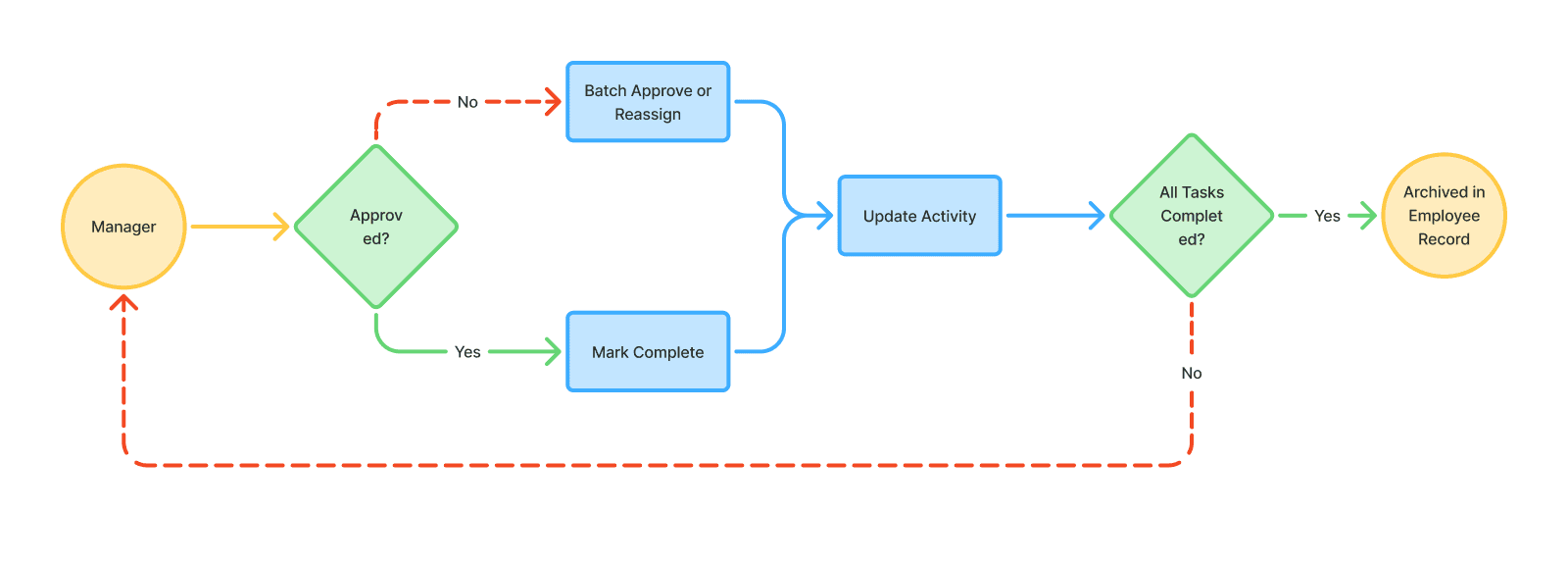
Before designing the interface, I mapped the main workflow from HR creating a workflow template to the final employee record being updated. This helped me understand how different users, especially HR and managers, move through the system.
The workflow is divided into three main parts: template setup, workflow tracking, and task completion with issue resolution. HR users start by creating reusable templates and assigning tasks, while managers focus on reviewing, approving, and completing assigned tasks.
This mapping showed that the platform needed to be more than a simple task list. It needed to connect reusable templates, active workflows, assigned tasks, progress status, and quick actions into one continuous system. This became the foundation for the dashboard, template builder, and Action Center.
Making Blocked Tasks Actionable

To help HR users act faster, I designed the overview dashboard around workflow urgency. Instead of placing every workflow in one long list, I separated them into Blocked, Pending, and On Track tabs so users can quickly focus on the workflows that need the most attention.
For blocked workflows, the card shows the exact stage causing the delay, such as contract signing, IT setup, access revoke, or final pay. I also added alert messages to explain why the workflow is blocked, along with the assigned owner and due date. This gives HR enough context to understand the problem without opening another page.
To make the issue actionable, I placed key actions like Send Reminder and Reassign directly on each blocked workflow card. This allows HR users to move from identifying a problem to resolving it in the same place.
Making Pending Tasks Actionable
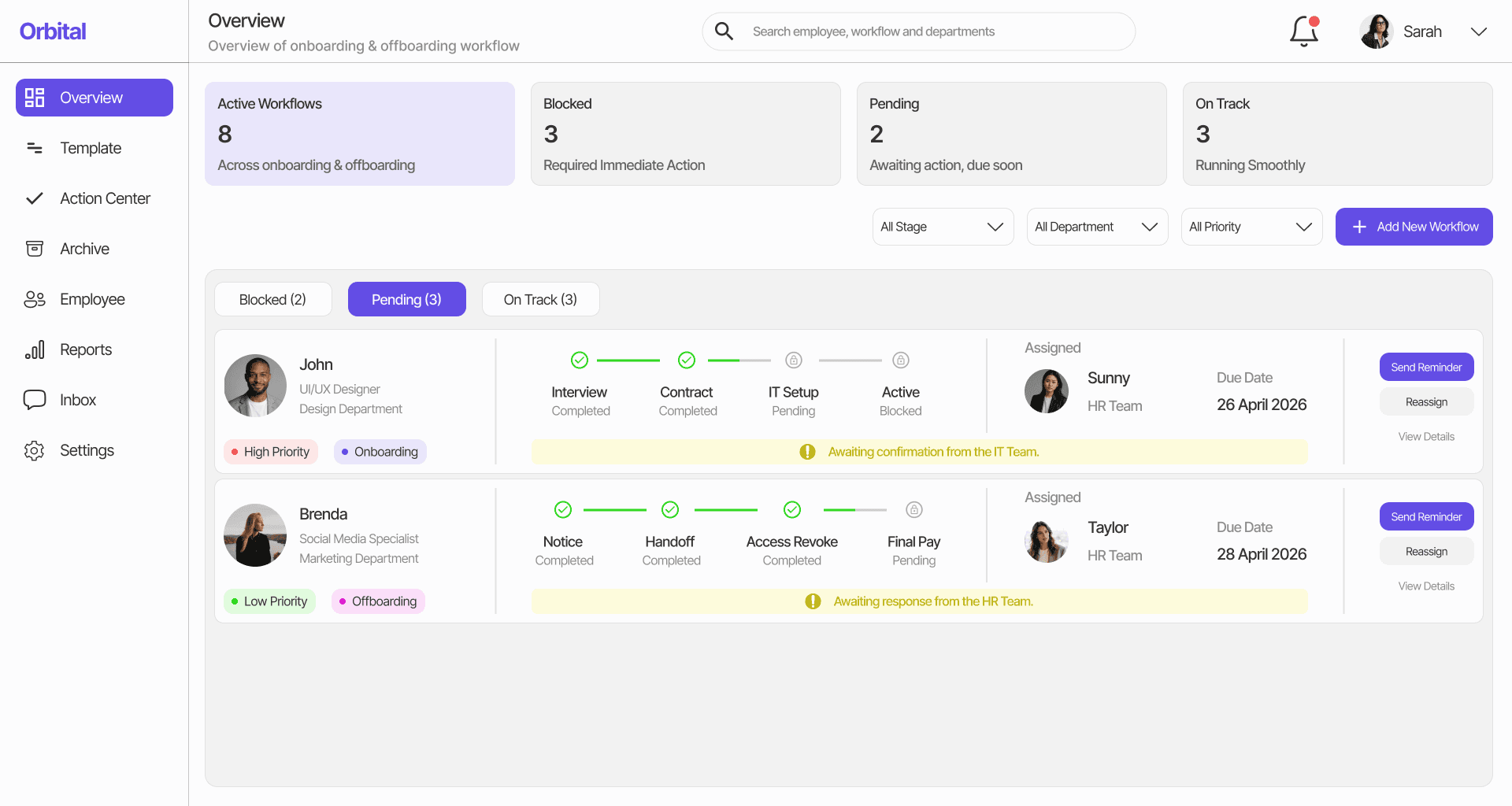
Pending workflows are not blocked yet, but they still need attention before they become delays. To make this state easier to understand, I separated pending tasks from blocked and on-track workflows so HR users can monitor them without mixing them with urgent issues.
I used yellow status messages to show that these workflows are waiting for confirmation or follow-up, such as approval from HR or confirmation from the IT team. Compared to blocked tasks, the visual treatment is softer to communicate that the task needs attention but is not critical yet.
Each pending card still includes the progress timeline, assigned owner, due date, and quick actions. This gives HR enough context to follow up early and prevent the workflow from becoming blocked. The screen also uses fewer workflow cards and more whitespace, making it easier to scan tasks that are waiting for the next action.
Confirming Workflows are On-track
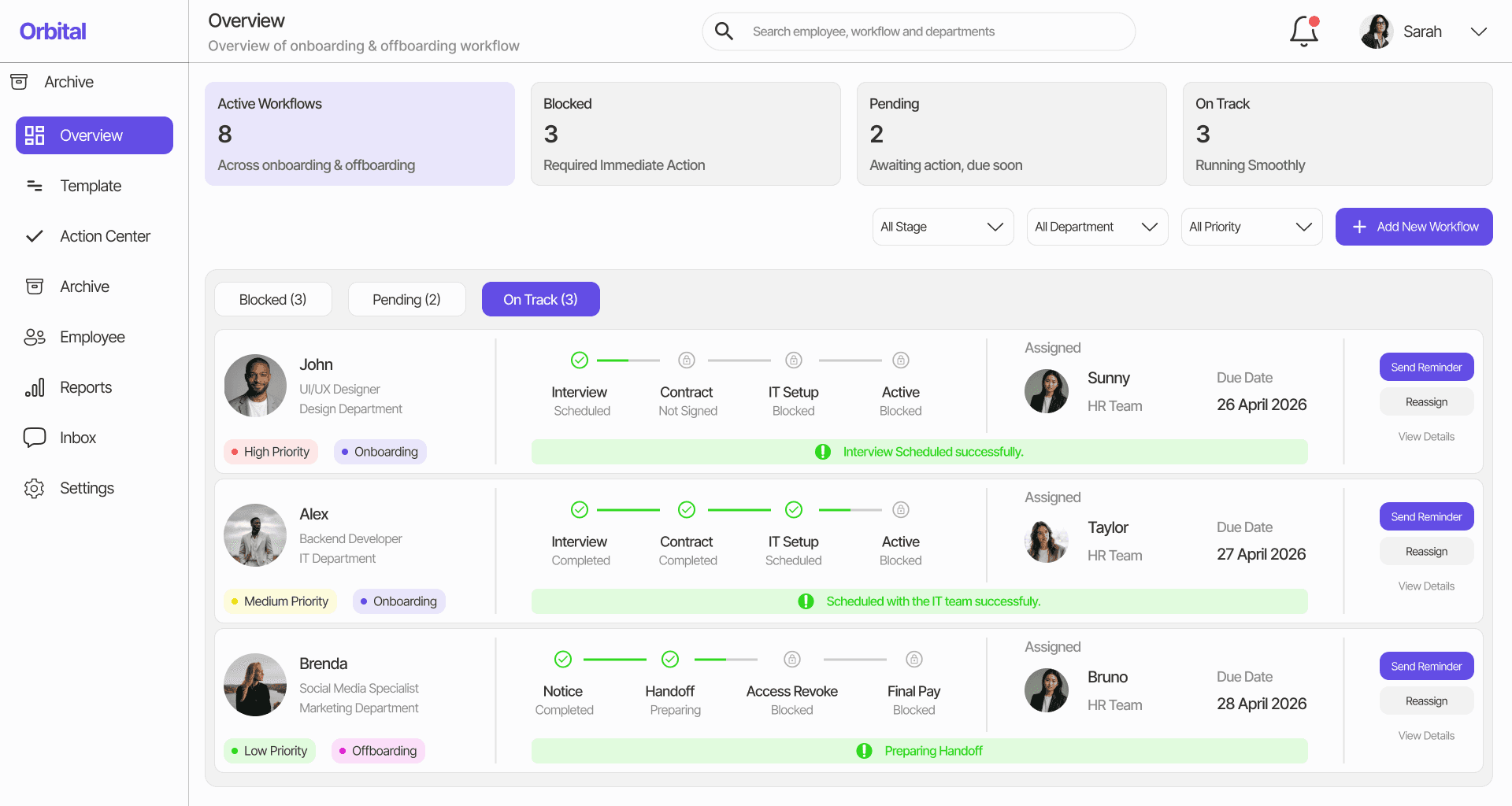
The on-track state helps HR users quickly understand which workflows are progressing normally. Instead of requiring users to check every task manually, the dashboard shows successful progress updates, completed or scheduled workflow stages, assigned owners, due dates, workflow type, and priority in one card.
I used green status messages to communicate that the workflow is moving forward without issues. The same card structure is kept across blocked, pending, and on-track states so users do not need to relearn the layout. However, the message tone is calmer and less urgent, helping HR users focus their attention on blocked or pending workflows first while still keeping visibility over healthy workflows.
Managing Reusable HR Workflows

The Template screen helps HR users manage reusable onboarding and offboarding workflows in one place. Instead of creating the same process from scratch for every employee, HR can choose from published templates or continue editing draft templates.
Each template shows key information such as the template name, scope, number of tasks, conditions, status, and last updated date. This helps HR quickly understand what each template is for and whether it is ready to use.
I also added actions like Use Template, Preview, and more options so users can quickly start a workflow, review template details, or manage existing templates. This makes the setup process faster and keeps repeated HR workflows more consistent across teams.
Flexible Workflow Rules
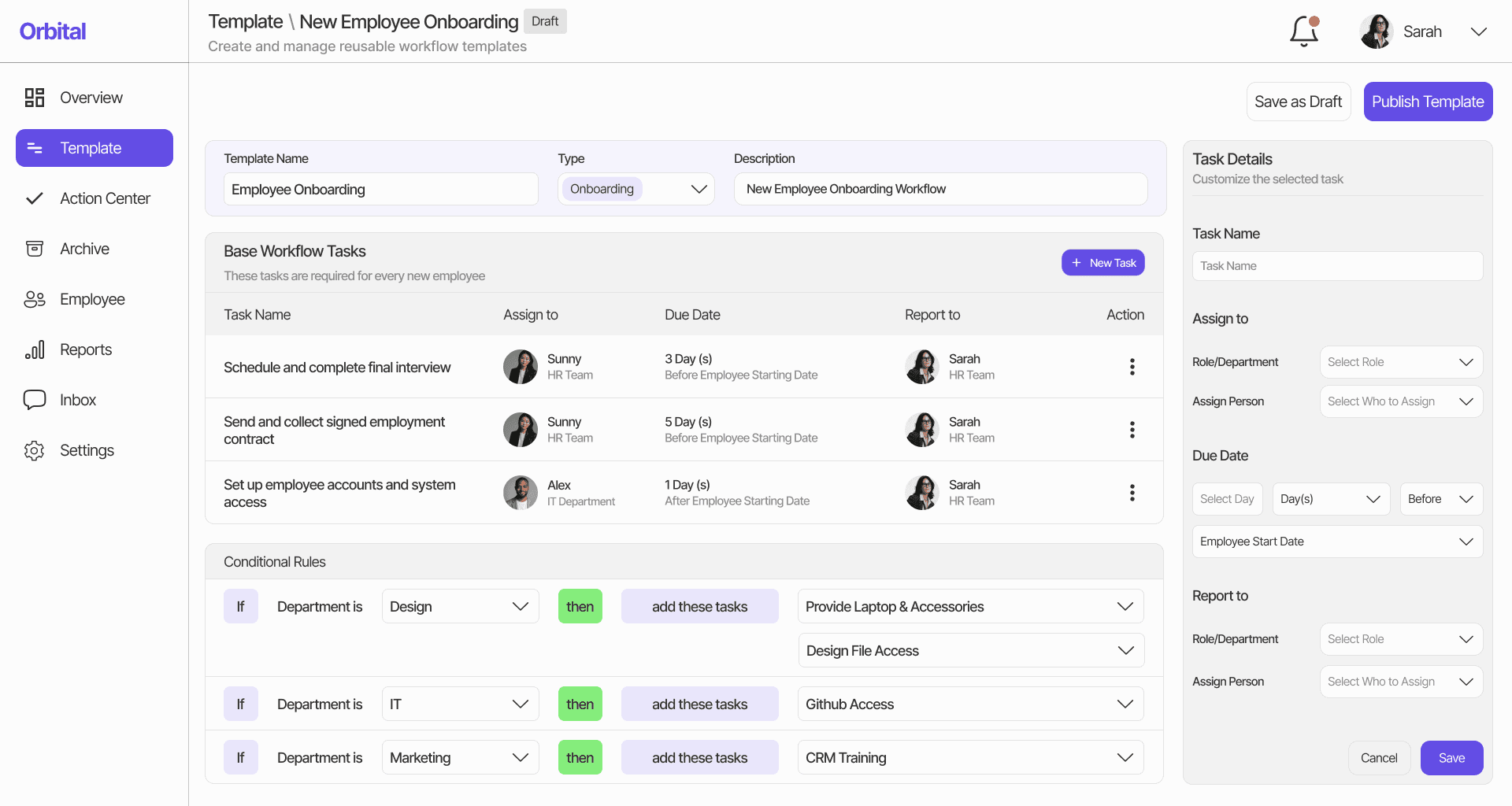
The Create Template screen allows HR users to build reusable workflows with tasks, owners, due dates, and reporting rules. Instead of setting up every onboarding or offboarding process manually, HR can define a base workflow once and reuse it across different employees.
The screen includes template details such as name, workflow type, and description, followed by base workflow tasks with assigned owners, due date rules, and reporting owners. I also added a task detail side panel so users can edit task information without leaving the template builder.
To make templates more flexible, I included conditional rules for department-specific tasks. For example, if the employee belongs to the Design department, the workflow can automatically include design-related setup tasks. If the employee is in IT, it can include GitHub access. This helps HR create workflows that adapt to different departments and roles while reducing repetitive manual setup.
HRs can save the template as a draft if it is still in progress or publish it when it is ready to use.
Helping Managers Complete Assigned Tasks

The Action Center is designed for manager-level users who need to review and complete tasks assigned to them across different employee workflows. Instead of checking each workflow separately, managers can see all related tasks in one focused workspace.
Tasks are grouped by action type, such as completing interviews, reviewing contracts, or setting up employee access. Each task shows the employee name, role, department, due date, status, and workflow type, helping managers understand what needs to be done and how urgent it is.
I also added a task detail panel to give managers more context before taking action. The panel shows workflow progress, task details, activity history, and a Complete Task button. For repeated actions, bulk selection allows managers to complete or manage multiple tasks more efficiently. This helps managers move through assigned work faster while keeping the overall workflow updated.
What I Learned
This project helped me understand that dashboard UX is not only about displaying data. A good dashboard should help users decide what needs attention first and what action to take next.
For Orbital, the biggest design challenge was balancing visibility and complexity. HR workflows contain many details, including employees, tasks, departments, due dates, assignees, priorities, and workflow stages. Instead of showing everything in a dense table, I designed a system that separates information by user intent:
The Overview helps HR monitor workflow health.
The Template section helps HR create reusable processes.
The Action Center helps users complete assigned work.
Status tabs and alerts help users prioritize urgent issues.
Through this project, I learned how important it is to connect information with action. Showing a blocked workflow is useful, but allowing HR to send a reminder or reassign the task directly from the same context makes the experience more effective.